
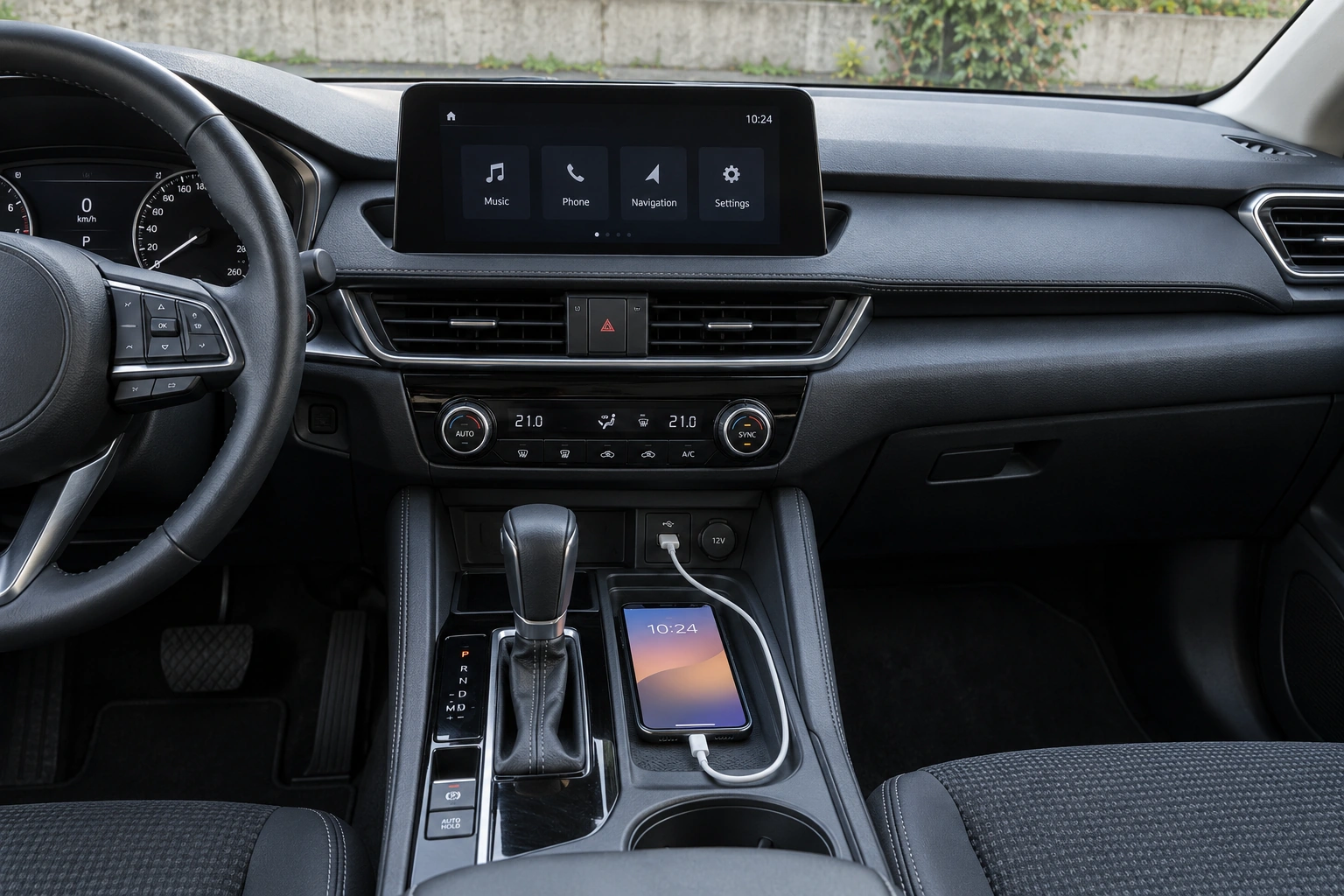
Wired and wireless Android Auto use different connection paths, but both require compatible equipment. A head unit with Bluetooth or a USB port does not automatically provide Android Auto, particularly wireless support. Confirm the capabilities of the phone and vehicle system as a pair.
The more comfortable option depends on everyday habits, existing devices and travel needs. Begin by checking models and manuals, then test while safely parked. Do not change settings while driving merely to demonstrate which connection is more convenient.
Separate features that are often confused
Bluetooth calling or audio is different from Android Auto. Similarly, USB ports can have different charging and data functions depending on the equipment. Name the feature you actually need when speaking to a seller or technician.
Record the phone model, current operating-system version and head-unit brand and model. For a factory system, include the relevant vehicle year and variant. A vehicle name alone may be insufficient because fitted equipment can vary.
Google’s Android Auto setup guidance distinguishes wired and wireless preparation. Follow its linked current requirements for the devices and region of use, rather than relying on compatibility thresholds copied from an old article.
Check the wired connection path
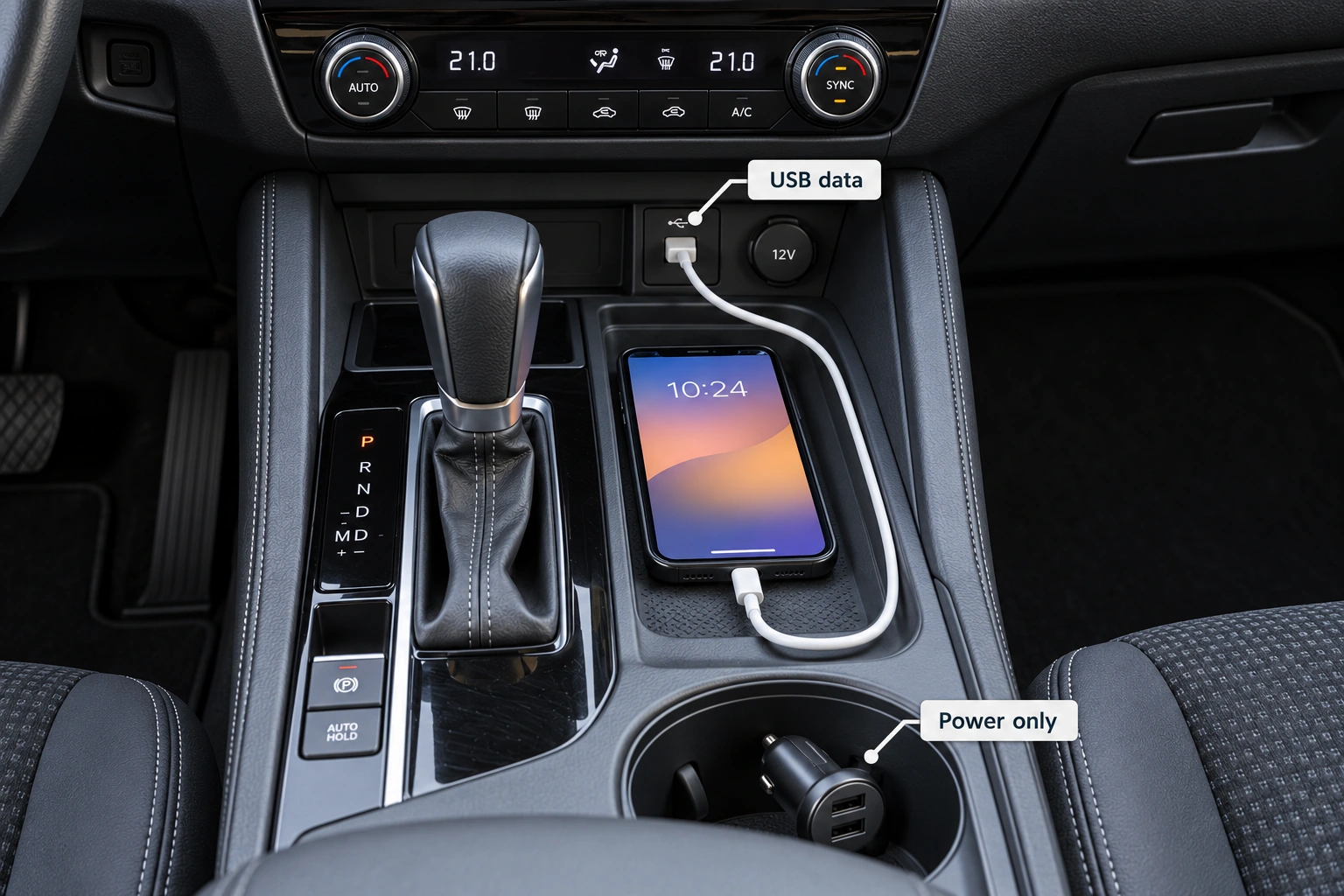
For a wired connection, identify the port intended for Android Auto and a cable suitable for the required data connection. A charging phone does not establish that the data path works. Match the connectors and instructions to the actual equipment.
If it does not connect, record whether the phone only charges, shows a permission request or does not respond. Change one thing at a time, such as trying another suitable cable or the port specified in the manual. Changing several parts together makes the cause harder to identify.
Avoid adding hubs or adapters without checking support. A longer connection chain can make troubleshooting more difficult. Start with the path recommended by the manufacturer so the result can be compared with the device instructions.
Confirm wireless support on both devices
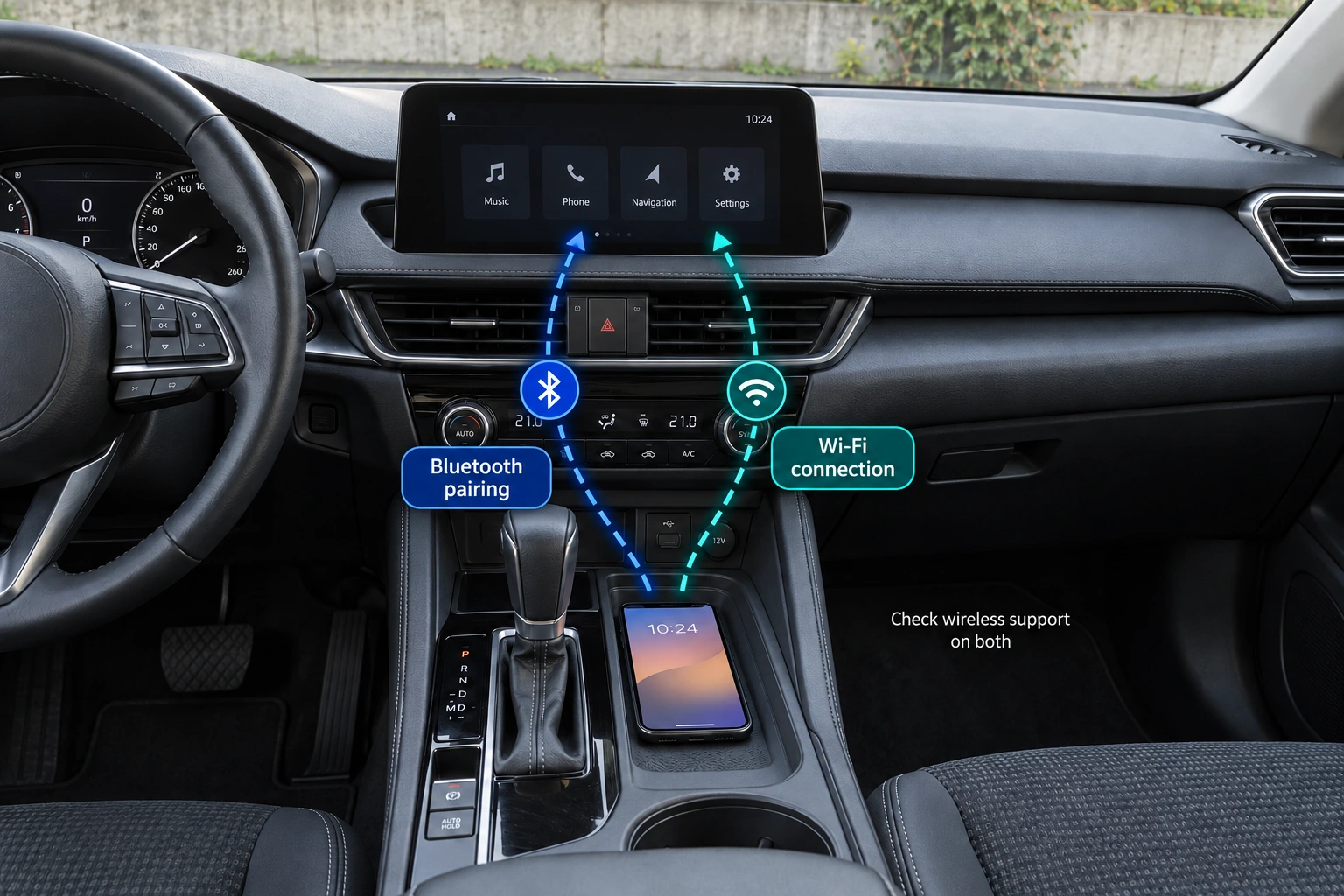
Wireless Android Auto requires suitable support from both the phone and vehicle system. Google’s setup guidance uses Bluetooth for initial pairing and includes Wi-Fi settings in preparation. Successful Bluetooth audio therefore does not establish wireless Android Auto availability.
Pair while safely parked with the infotainment system active as instructed. Follow prompts on both the phone and head unit. If several phones were previously paired, note which device is selected as the active connection.
A wireless adapter is a separate product whose compatibility also needs checking. It should not be assumed to give every head unit and phone every feature. Confirm the exact product’s limits before purchasing or promising a particular result.
Compare everyday routines
| Habit | Wired question | Wireless question |
|---|---|---|
| Short journeys | Is connecting the cable convenient? | Does reconnection behave as expected? |
| Several drivers | Which phones have a suitable cable? | How is the active phone selected? |
| Phone placement | Can the cable route remain tidy? | Where can the phone rest securely? |
| Charging | Does the arrangement meet power needs? | Is separate charging required? |
The table supports a practical comparison rather than naming a winner. A wireless connection does not automatically meet charging needs. A cable also needs positioning that does not interfere with vehicle controls or allow the phone to fall.
For shared vehicles, test switching phones according to the instructions. A connection to a previously paired device should not be mistaken for a fault. Explain how users select the correct device before they begin driving.
Test the features actually needed
Once connected, try supported applications that matter to the user, such as navigation and audio. Check relevant sound, microphone and controls against the system’s intended behaviour. Available applications and features can depend on device and service support.
If the connection drops, record when it happened and what appeared on screen. Distinguish a lost device connection from a mobile-network or application problem. This narrows the investigation more effectively than describing every symptom as “Android Auto does not work”.
Keep a note of settings that work and avoid repeating setup without a reason. For a shared vehicle, explain the necessary steps to other drivers. Preparation should happen before travelling so attention remains on the road.
Ask specific questions when choosing a head unit
Ask about wired and wireless Android Auto separately. Request the exact model identity and, where available, a demonstration with suitable equipment. Do not transfer a feature listed for one model to another model from the same brand.
Continue with choosing a head unit around real needs to consider other relevant functions. When consulting Hariman, bring the phone, head-unit and vehicle identities. The decision can then follow verifiable compatibility and the routine people actually use.